
In a new ongoing blog series, I’ll use this “How To” moniker to highlight specific things I’ve done along the publishing process, editing process, marketing process, etc. Personally, I’ve found these articles from other blogs to be insanely helpful and even still, I’ve found gaps that caused me to go down frustrating research rabbit-holes, making me want to memorialize some of my findings (selfishly, for my own sake!). Some of these may be very quick, while others could be meaty…it’ll all depend on the topic.
Today – heavily related to my ARC kickoff – this article pertains to sending ARC copies to a Kindle. It includes both information if you are RECEIVING and ARC or if you are the author SENDING the file. Please jump to whichever section pertains to you below!
Receiving – an author is sending you an ARC
- Go to Amazon.com, find “Your Account“. It should be in the upper right hand corner
- Your Account page will have several tiles. Look for Digital Content & Devices (scroll down, center of page)
- Click “Devices”
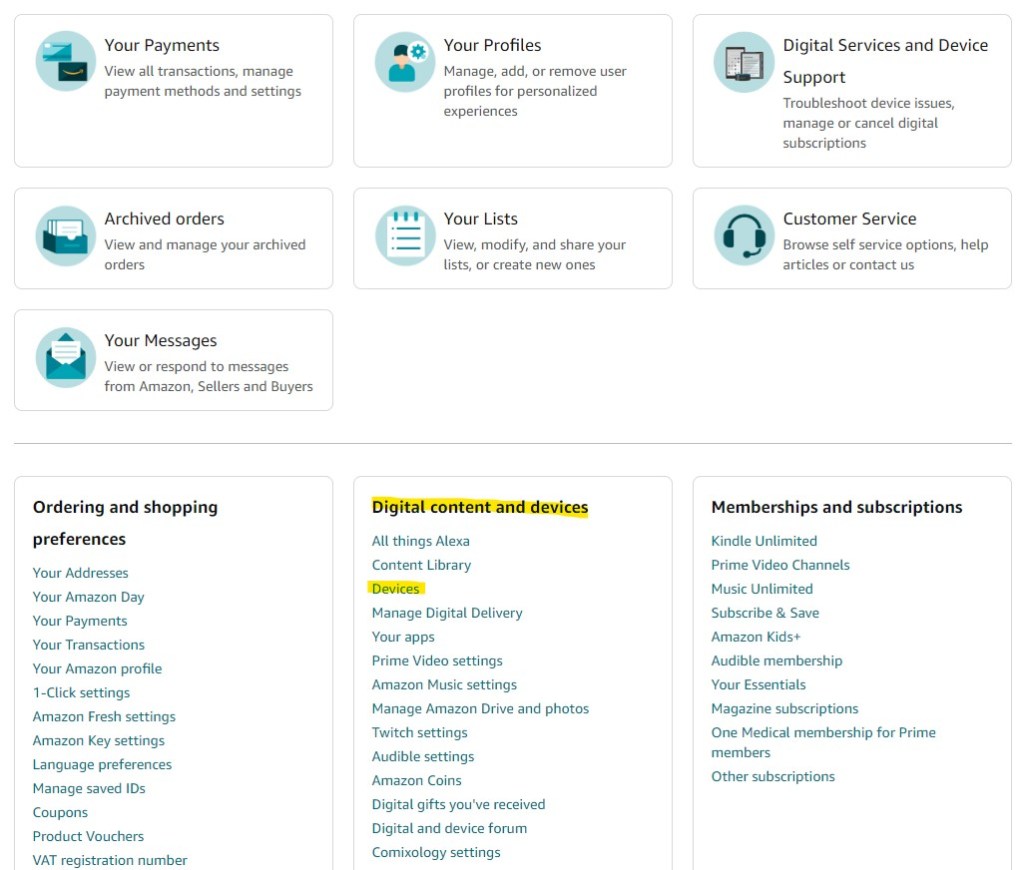
- Your devices connected to Amazon should pull up. Select the Kindle you’d like your ARC to go to
- This will take you to the Device Summary page as a default. Select the Preferences tab from above
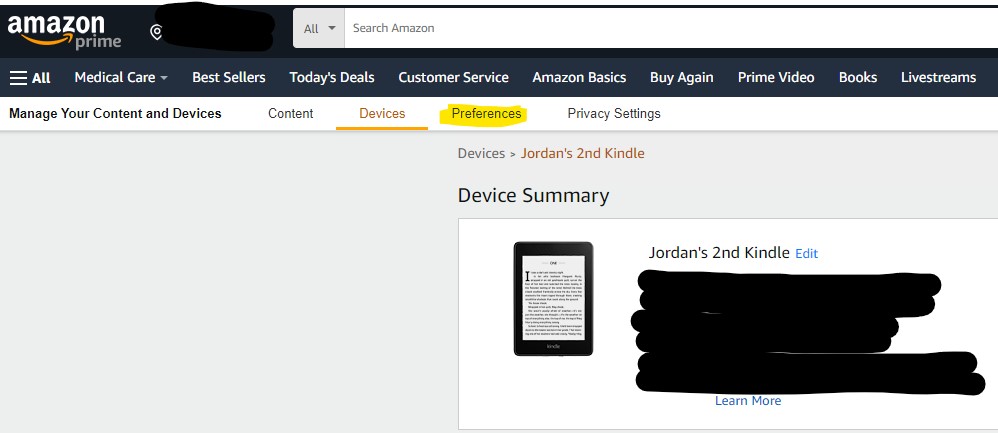
- Scroll to the bottom of the page and select the Personal Document Settings header. This will drop down some key information you need.
- Under Approved Personal Document E-mail List, you’ll need to add the author’s email. Click “Add a new approved e-mail address”. They need to provide you with this! Once complete, you should see it added.
- Find your Kindle’s email under Send-to-Kindle E-Mail Settings. It will be in the center, ending with an “@kindle.com” address.
- This is the email you will need to provide the author in order to receive your ARC.
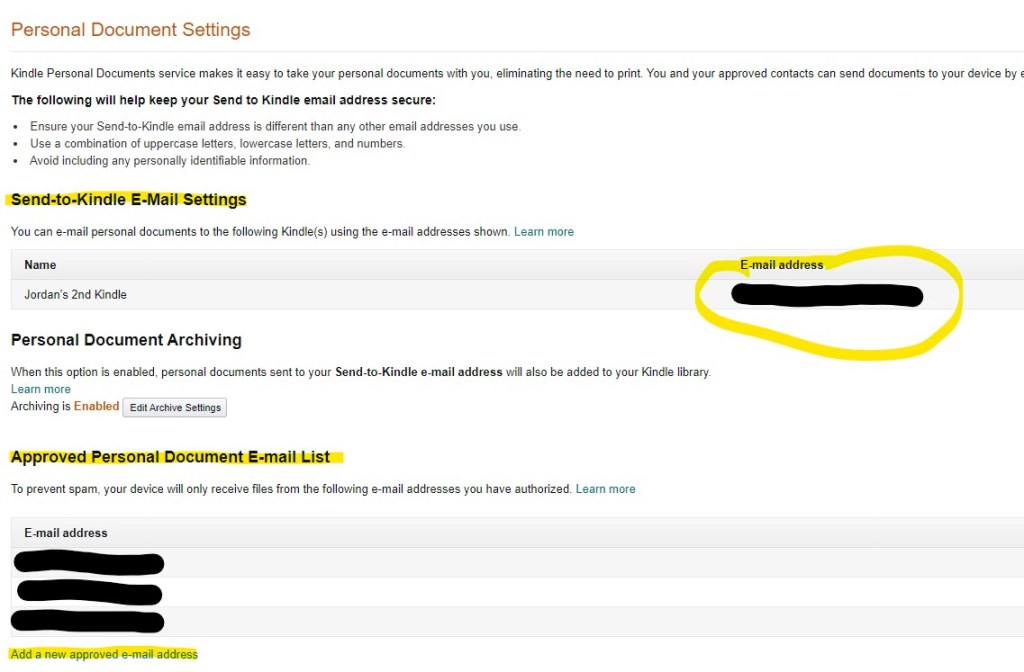
1) Adding the author’s email to your approved list (at bottom)
2) Copying your Kindle email and providing it to the author
- After the author has sent the ARC: you should see it arrive on your Kindle within 5-10 minutes. Make sure you’re connected to the internet
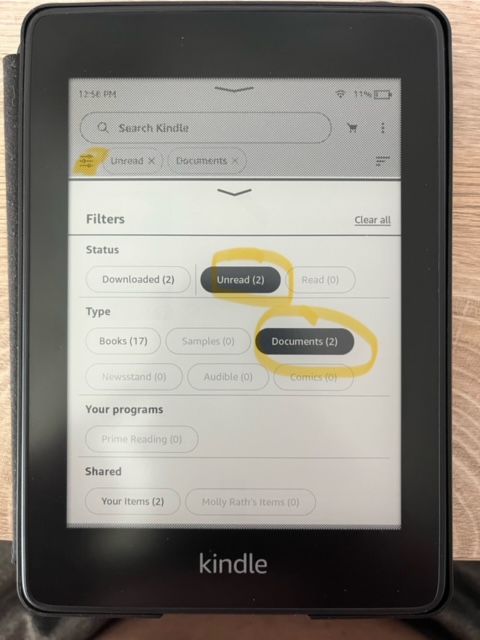
- If you can’t find it, try filtering to “Unread” and “Documents”
- If you see that it is “Queued” but not doing anything, select the three vertical dots on the bottom right of the document. There should be an option to “Download”. Click it to download the document
- If still experiencing issues, it’s best to reach out to the author as they may have sent the wrong file type (ePUB only) or potentially made an error in the email itself
Sending – you are an author, sending an ARC to a reader
- Firstly, ensure that your ARC file is .epub
- If your file is not .epub, you cannot send your ARC to a Kindle
- There are lots of ways you can convert your digital documents into .epub. I recommend:
- Kindle Create: yes, it is littered with “quirks” (I could create a whole “How To” on it), but I’ve still found it one of the most user-friendly and efficient ways to create your Kindle file and other files like .mobi, and .epub
- Calibre ePub: I’ve used this after Kindle Create to add cover art mostly. Even with limited use, I find it pretty easy to get the hang of
- A good rule of thumb is that if your ebook file isn’t ready to go (e.g. ePub format, cover art, etc.), it’s probably too early for you to be sending ARCs. You’re more likely in a beta-reader phase or you have more work to do
- I recommend ensuring you have a Copyright Page and that it states that this is an ARC copy, using language like “not to be distributed to other parties…”, etc. Examples of this are easy to Google
- Obtain the “@kindle.com” address from the reader. They should use the steps above to know how to do this. Remind them to add your email to their “approved” list, otherwise your ARC won’t go through
- Prep your email
- Put the @kindle.com email address in the “To:” line
- Attach your .epub ARC file
- Ensure the subject line and body of email are BLANK!!
- This includes email signatures. Just delete them!
- Send to your ARC readers!

- After you have sent the ARC: check in with your readers to ensure they received it. If not, help them troubleshoot potential issues by using the Receiving section above. Some common errors:
- They forgot to add your email to their “approved” list
- You gave them the wrong email to add to their “approved” list
- They gave you the wrong Kindle email address
- You didn’t send them an .epub file
- You had text in the subject or body of the email you sent to their Kindle
- The document is on their Kindle, they just can’t find it (or its “Queued”)
If you’re an author, looking for a quick How To to provide your readers that may be unfamiliar with the send-to-Kindle ARC option, or you’re new to it yourself, please don’t hesitate to share this link with others! That’s what it’s here for!

 J. T. Rath
Leave a reply to How To: Create A+ Amazon Content – J. T. Rath Cancel reply